A client asks to see your slides before a speech. You want them to review the content, but sending the editable PowerPoint feels like giving away more than they need.
That is the situation that led me to build Share Deck. Upload a presentation, choose how long it should remain available and send a link. The recipient opens the slides in a browser. Downloads are disabled by default.
This mini guide shows you how to share presentations online and use presentation analytics to prepare a more relevant sales follow-up. You will find the upload steps, sharing controls and a practical guide to reading slide, link and video performance.
Quick answer: how to share a presentation with Share Deck
- Open Share Deck.
- Choose a PDF or PowerPoint file.
- Edit the title and select 1, 3 or 7 days.
- Add a password if you want an extra access check.
- Select Create link and wait for the presentation to be prepared.
- Copy the link, test it and send it to your recipient.
You can do this without creating an account. Your recipient does not need to register either. If you want a library, permanent availability, comments, optional downloads and presentation analytics, create an account first.
What is Share Deck?
Share Deck is MLC’s platform for sharing PDF and PowerPoint presentations as browser-based slide previews. It separates two decisions that are often bundled together: letting somebody see your presentation and giving them a copy of your file.
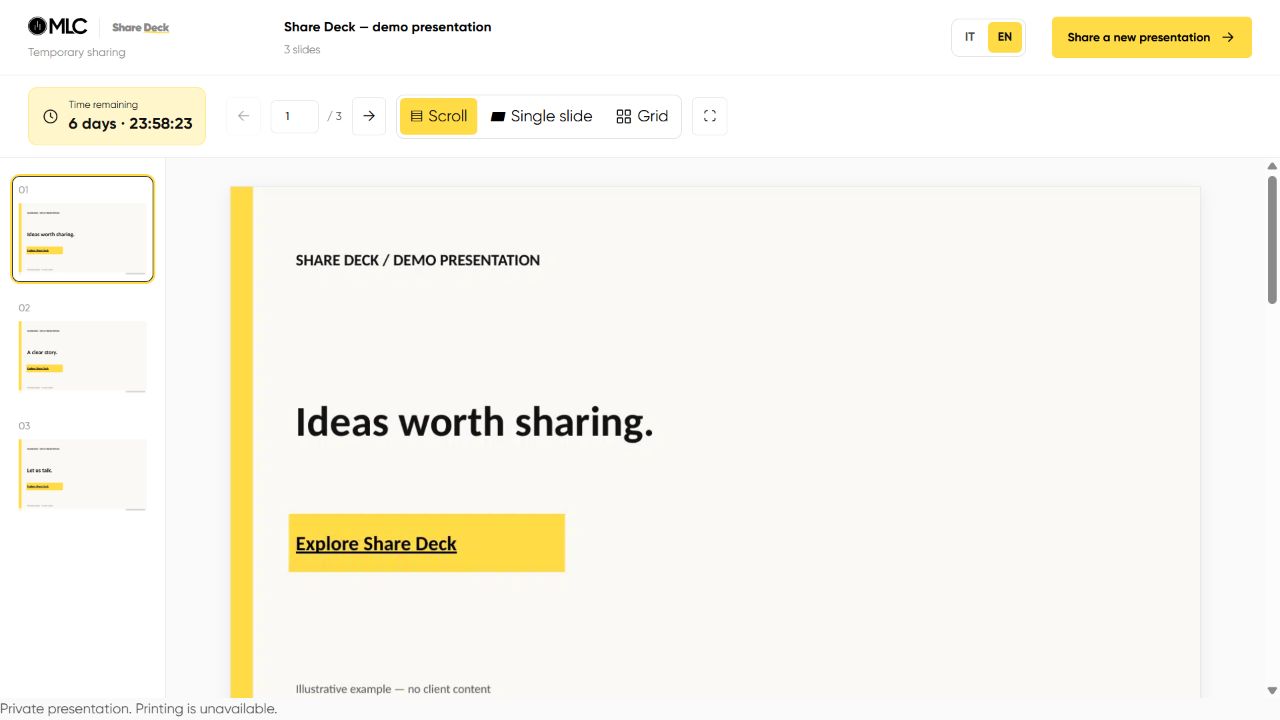
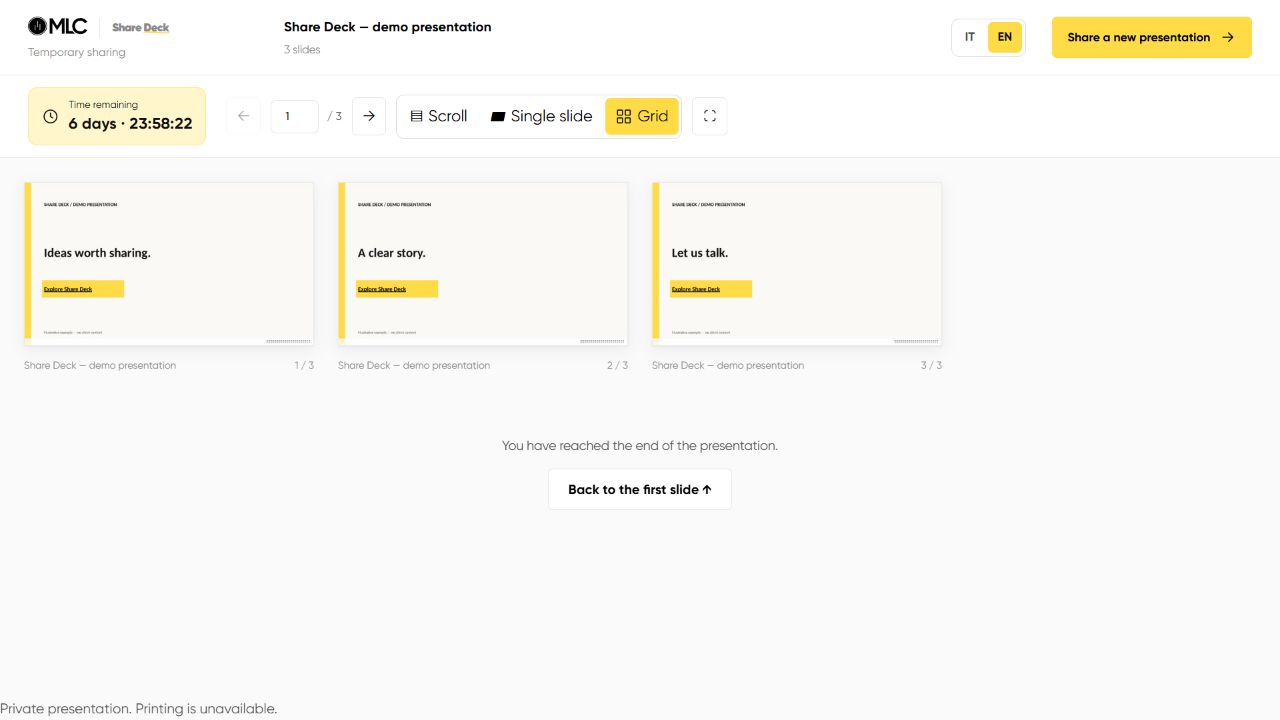
The slides are prepared as lightweight images for browsing. The shared viewer offers scrolling, one-slide viewing, a grid and fullscreen, with a countdown for temporary links. Supported links and video elements can remain interactive.
It is useful when you want people to explore your story independently. It is not a substitute for a collaborative slide editor. For co-authoring, use a shared editable workspace. For showing a finished or review-ready deck, a viewing link is often a better fit.
Presentation analytics: turn your sales deck into a better follow-up
The real value is what happens after you share. For sales teams, Share Deck turns a presentation link into a source of measured engagement signals. You can prepare your next conversation around the content a prospect explored, instead of following up with a generic “Did you see my deck?”.
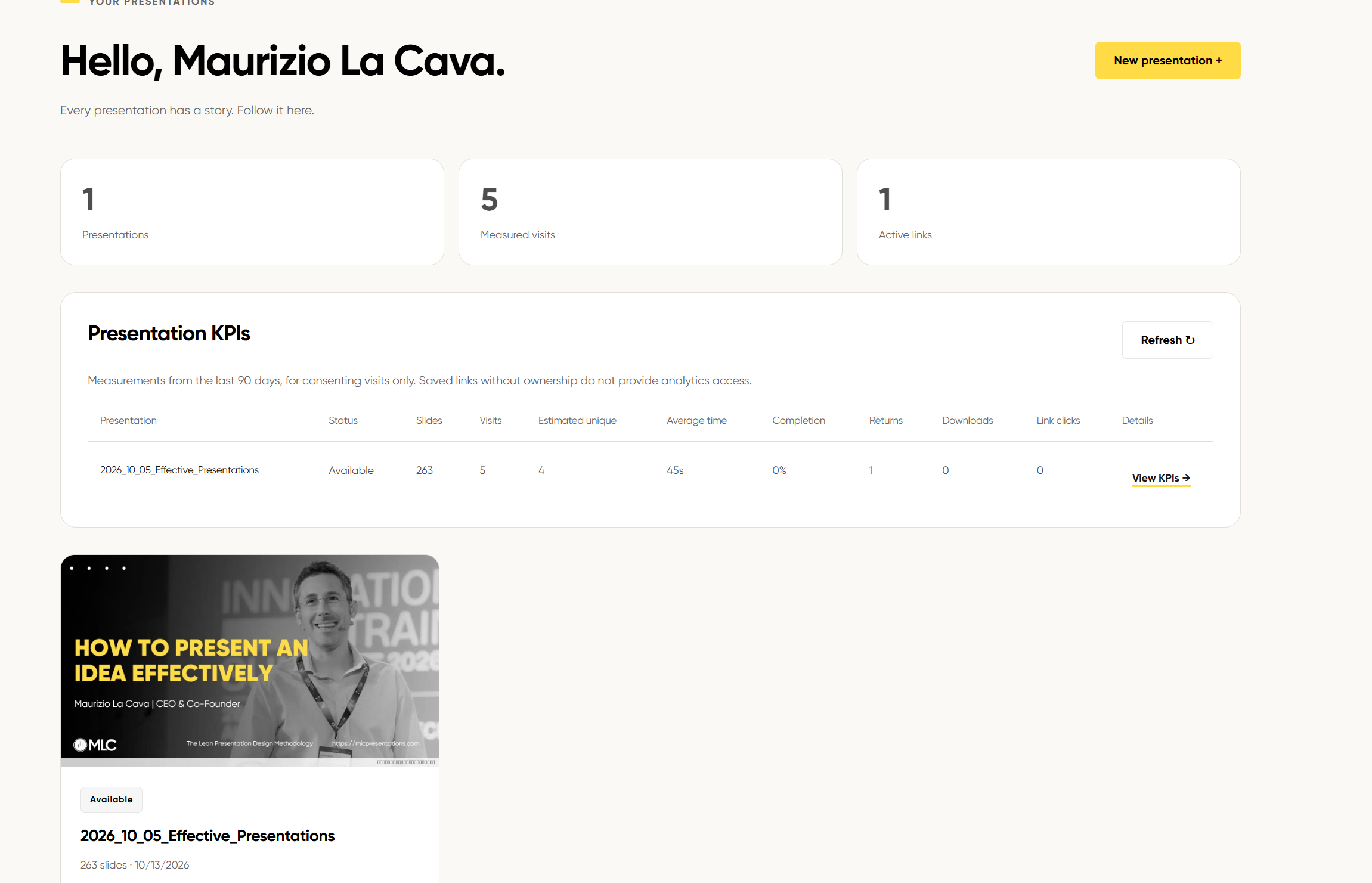
The screenshot shows 5 measured visits and 4 estimated unique browsers for one presentation, plus average time, completion, returns, downloads and link clicks. These are observed dashboard values, not a benchmark or a promise of sales results. Only consenting visits contribute to these measurements; an estimated unique browser does not necessarily correspond to a distinct person.
When I send a sales presentation, the useful question is not just “Did the link open?” It is “What should we talk about next?” Share Deck’s account analytics help you connect the next conversation to the material your prospect actually explored.
Start with the overview, then open the individual presentation. Compare measured visits and estimated unique browsers across decks. Inside a presentation, look at slide exposure, active viewing time, completion, link clicks and supported video interactions. Filter by period and sharing link to keep different opportunities separate.
SHARE → OBSERVE → FOLLOW UP
Send a dedicated link for each opportunity. Read the measured interactions. Choose one useful question or piece of supporting material for your next conversation.
What to look for before your next sales call
| Measured signal | Commercial question | Useful next step |
|---|---|---|
| Visits and return visits | Has this link been revisited? | Check the opportunity context and ask whether any new questions have come up. |
| Active time by slide | Which part received more measured viewing time? | Prepare a relevant example, explanation or implementation detail. |
| Slide exposure and completion | Did the measured journey reach the proposal and next step? | Make the core recommendation easier to find; consider a shorter deck. |
| Clicks on presentation links | Which resource or call to action was opened? | Follow up on the relevant case study, offer or meeting step. |
| Video viewing | Was the supported demo played, and how much was watched? | Offer a focused live demo or answer questions about the demonstrated workflow. |
| Pointer and click heatmaps | Where did consenting viewers interact on the slide? | Review the clarity of the content and link placement. Pointer position is not gaze. |
This is a reading guide, not a screenshot or a set of customer results. Metrics describe measured interactions from consenting browsers; they do not identify every person or establish buying intent.
A practical sales follow-up example
Imagine sharing a proposal with a dedicated link for one opportunity. Later, the measured activity shows a return visit and more active time on the implementation section. You now have a useful topic to prepare: milestones, responsibilities and onboarding.
“Would it help if I walked you through the first three implementation milestones and what your team would need to provide?”
That is a more specific next conversation than “Just checking whether you saw my deck.” Treat the data as a prompt to ask, rather than a reason to tell the prospect what they must be thinking.
Set up a sales sharing workflow
- Upload from your account so the presentation belongs to your library.
- Create and label a dedicated sharing link for the opportunity. A label describes the link; it does not verify the viewer’s identity, and a forwarded link remains the same link.
- Put a useful next step inside the deck: a case study, a product page or a meeting link. Supported slide links can be measured individually.
- Open Performance and select the relevant period and link. Read the overview, then slide, link and video detail.
- Combine the signals with the conversation. Use the customer’s questions, timeline and agreed next step to decide how to follow up.
Create your Share Deck account to manage presentations and explore their performance →
When should you use it?
1. Let a client review your slides before a speech
Share the content before a keynote, workshop or internal event so the client can check the flow and flag anything that needs changing. Choose an availability window that includes the review deadline and your own buffer. Add a password when appropriate and send it separately.
The client can view the presentation without receiving the editable master. If you enable comments from your account, feedback sits in a sidebar for the whole presentation. Ask reviewers to include slide numbers in their comments.
2. Follow up after a sales conversation
Send a short deck that reflects the discussion, rather than attaching the entire corporate presentation. Include the customer’s challenge, the proposed change and one clear next step.
An account lets you create labelled links for different recipients or opportunities and compare measured interactions. A return visit or a click can help you prepare the next conversation. It does not prove that the prospect intends to buy. For the story itself, read my guide to an effective B2B sales presentation.
3. Share a proposal, portfolio or pitch
Give a prospect a browsable preview of your work or let a stakeholder explore a pitch before a meeting. Keep the narrative self-contained: you will not be there to explain every slide. Use a temporary link for a time-limited review, or permanent availability from an account when the presentation needs to remain accessible.
4. Give people a reference after a workshop
Participants can revisit the material from a phone or laptop without installing presentation software. Decide whether they only need to view it or should also be able to download it. The download decision belongs to you; it is off by default.
How to use Share Deck, step by step
Step 1. Prepare the right file
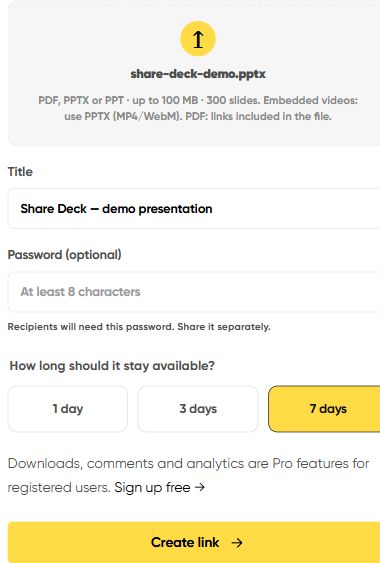
Share Deck accepts PDF, PPTX and PPT files, up to 100 MB and 300 slides. Use PDF when visual fidelity matters most. Use the original PPTX if the presentation contains embedded videos you want to preserve; supported browser video formats include MP4 and WebM.
A PDF cannot recreate a video that was flattened or removed during export. Legacy PPT does not preserve interactive links and videos in the same way as PPTX. Animations and transitions are not reproduced as a live PowerPoint slideshow: the main browsing experience uses slide images.
Step 2. Upload, name and set the duration
Choose or drop your file on the landing page. Give the presentation a title your recipient will recognize, then select 1, 3 or 7 days. The availability period begins when the link is ready, after preparation, rather than when you first select the file.
Step 3. Add a password if needed
Use the optional password field before creating the link. The recipient will need that password to open the presentation. Send it through a separate channel when the context calls for it.
A password controls access to the viewing link. It does not stop an authorized viewer from taking screenshots. Think of it as an additional access check, not a guarantee that visible information cannot be copied.
Step 4. Create and test your link
Select Create link. Once preparation is complete, the platform shows the sharing link and its expiry. Select Copy link, then Open presentation to check that the content looks right. For password-protected links, also test in a private browser window.
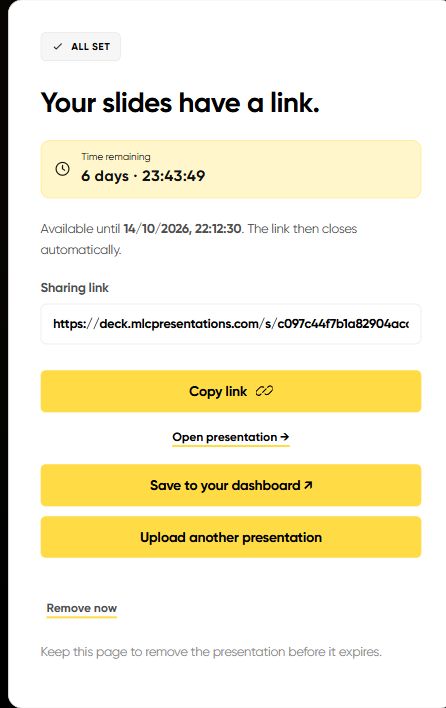
Keep the confirmation page if you share as a guest: it includes the option to remove your presentation before it expires. Send the link by email or chat with one sentence explaining what you want the recipient to do and by when.
Step 5. Let the recipient choose how to browse
Scroll works for reading the story from beginning to end. Single slide focuses on one slide at a time. Grid helps someone find a specific section. The viewer also has slide navigation and fullscreen controls.
Links that exist in the uploaded file can be opened from the slides. Supported videos can be played in the viewer. YouTube, Vimeo and external video links depend on the provider allowing playback; loading an external player contacts that provider.
What changes when you create an account?
Guest sharing remains available. Registration adds a workspace for managing your presentations and their sharing options.
- A presentation library: find your decks and open their individual workspaces.
- More control: manage availability, choose permanent sharing, change passwords and revoke access.
- Optional downloads: allow PDF, PowerPoint or both when you decide the recipient should have a file.
- Presentation comments: enable a sidebar conversation for the whole deck, rather than a separate thread on every slide.
- Dedicated links and a sales CTA: organize links by recipient or opportunity and provide a clear next step.
- Analytics: review measured visits, estimated unique visitors, active time, slide-level performance, link clicks and supported video interactions.
After logging in, select New presentation. The upload opens in a dedicated window inside your dashboard. You can also add an existing Share Deck link. Saving a public link as a bookmark does not, by itself, make you its owner or give you its analytics.
Download and comment options are disabled by default. A downloadable PowerPoint generated from PDF contains slide images, not the original editable objects. Upload the original PPTX when you need to preserve its editable file for authorized downloads.
How to read your performance dashboard
Open a presentation from your dashboard and choose Performance. Use the period and link filters to narrow the data. The presentation table gives you an overview; the individual workspace shows slide, link and video detail.
- Measured visits and return visits: describe consenting browser sessions. Unique visitors are estimated browsers, not verified people.
- Active slide time: measures qualifying visible, active viewing. It cannot tell you whether someone understood the content.
- Presentation completion: checks that every slide received qualifying measured exposure. It is not proof that every word was read.
- Link clicks: show which presentation links were clicked. A click is not automatically a booking or a sale.
- Video performance: distinguishes play/resume, watched time, pauses, seeks, reaching the end and completion. Completion requires at least 95% actually played; skipping to the end is not enough.
- Heatmaps: aggregate pointer movement and clicks when enabled. They are not eye tracking.
Measurement requires viewer consent. The browser-recognition cookie is installed after acceptance and can be revoked through Privacy at the end of the presentation. Declined consent, cookie deletion, browser restrictions and interrupted connections can reduce the available data. Use the signals to ask better follow-up questions, not to claim certainty about someone’s attention or buying intent.
Frequently asked questions
Can I share a presentation without registering?
Yes. Guest uploads support temporary sharing for 1, 3 or 7 days, with an optional password. Recipients also do not need an account to view the link.
Can the recipient download my presentation?
Downloads are off by default. Registered owners can enable PDF and PowerPoint downloads. Visible slides and playable media can still be captured; no browser viewer can guarantee otherwise.
Can I keep a presentation online permanently?
Yes, permanent availability is available to registered users. It remains subject to the owner’s access settings and removal.
What happens when a temporary link expires?
The link stops allowing access when its availability period ends. The countdown shows the time remaining. Check the chosen window before sending a link for a scheduled review.
Will my PowerPoint videos and animations work?
Supported embedded videos in PPTX and supported video links can play in the viewer. External players depend on provider permissions. Slide animations and transitions are not preserved as a live PowerPoint slideshow.
Does a longer viewing time prove greater interest?
No. It is a measured interaction signal. Combine it with the recipient’s questions, feedback and agreed next step.
Give your presentation a useful next step
The point of sharing a deck is to make the next conversation easier. Choose the material your recipient needs, set an appropriate availability window and make the next action clear.
Try Share Deck and create your first presentation link.
For the work before sharing, explore the PowerPoint Quick Access Toolbar guide and the MLC presentation design service. Sharing helps a good story travel; it cannot replace the work of making that story clear.



Comments on Share Deck: How to Share Presentations Online with a Link